Master Flowo
Everything you need to get the most out of Flowo — from your first task to advanced AI scheduling techniques. Step-by-step, with tips and best practices.
What is Flowo?
Flowo is an AI-powered scheduler that automatically places your tasks into your calendar based on your priorities, deadlines, and energy patterns. Unlike traditional to-do apps, Flowo doesn't just list your tasks — it figures out when to do them.
The core idea: you add tasks with a title, duration, importance, and deadline. Flowo's scheduling engine then places each task in available time slots, respecting your working hours, avoiding conflicts with calendar events, and prioritizing tasks that need to be done first.
AI Auto-Scheduling
Add a task, set a deadline — the AI places it on your calendar instantly, no manual dragging.
Any Calendar Source
Connect Google Calendar, Outlook, or any ICS URL. Events appear alongside your tasks in real time.
One-Click Reschedule
Plans change. One click and the AI reshuffles everything intelligently around your new reality.
AI Sub-Task Generator
Describe a project in plain language. The AI generates a detailed to-do list with time estimates.
Custom Timeslots
Define when you work. Morning focus, evening sessions, weekends — any schedule works.
Works Everywhere
Browser, desktop, or mobile. Install as a desktop or mobile app from your browser — no app store needed.
Quick Start (5 Minutes)
From zero to a fully scheduled week in under 5 minutes:
Create your account
Go to getflowo.com/app and sign up with your email (or Google). Your data is securely synced to your account — accessible from any device, any browser.
Set up your working hours
Go to Settings → Planning slots and create a timeslot: pick which days (e.g., Mon–Fri) and which hours (e.g., 09:00–18:00). This tells the AI when it can schedule your tasks. Without a timeslot, nothing will be scheduled.
Add your first task
Click + New → Task in the sidebar (desktop) or the + floating button (mobile) → Task. Set title, importance (1–10), duration, deadline, then Save. The AI places it on your calendar within seconds.
Connect your calendar (optional but recommended)
Go to Settings → Calendar sync. Prefer Connect Google Calendar or Connect Microsoft Outlook (OAuth, real-time). Advanced users can still paste an ICS URL for any source.
Add more tasks and let Flowo plan your week
Add all your upcoming tasks. Click Reschedule to have the AI re-plan everything optimally. You now have a ready-to-execute week.
Interface Tour
Understanding the layout helps you use Flowo faster:
| Area | Location | What it does |
|---|---|---|
| Left Sidebar | Desktop / drawer on mobile | Agenda, Projects, Notes, Settings, project filters, AI assistant, Guide (opens inside the app), desktop app download, Support, logout. |
| Top Bar | Top of main view | Date navigation, Day / Week / Month cycle, Today, 🔄 Reschedule, weather show/hide (when enabled), AI chat, + New. |
| Time Grid | Center | The main calendar. Your AI-scheduled tasks appear as colored blocks. Synced calendar events appear with their source icon (Google, Outlook). |
| Task Detail Panel | Right side (on click) | Full task details, sub-task checklist, overdue warning, edit and delete buttons. |
| AI Assistant | Sidebar button (✨) | Generate sub-tasks from a plain language description. Open/close the assistant chat panel. |
| Mobile Bottom Nav | Bottom of screen | Menu, Agenda, Events, Projects, Notes, Settings — quick switching without the full sidebar. |
| Mobile FAB (+) | Above the nav | Same shortcuts as + New: task, Brain Dump, note, block a period. |
| Mobile Drawer | From ☰ Menu | Full sidebar: projects, filters, install, guide, support, logout. |
Tasks — Every Field Explained
When you click New Task, you get a creation form with these fields:
| Field | Required | What it does |
|---|---|---|
| Title | Yes | The task name shown on calendar blocks. Keep it short and actionable. |
| Description | Optional | Notes, links, context. Visible in the task detail panel. |
| Project | Optional | Associates the task with a color-coded project. Helps visual organization. |
| Importance | Yes | Slider from 1 (low) to 10 (critical). Higher importance = scheduled earlier in available time. Use 9–10 for genuinely urgent tasks, 5–7 for normal work. |
| Duration | Yes | Total time the task takes (in hours/minutes). Be realistic — underestimating leads to overloaded days. |
| Timeslot | Yes | Which planning window to use. A "Deep Work" timeslot (9–12 AM) vs. a "Light work" timeslot (2–5 PM) lets you match task type to energy level. |
| Start Date | Optional | Earliest date the task can be scheduled. Useful for tasks that can't start before a certain date (waiting for info, dependencies). |
| Deadline | Recommended | The date the task must be done. The scheduler prioritizes tasks with earlier deadlines. No deadline = low urgency signal. |
| Split into Slots | Optional | For long tasks (3h+), split into smaller chunks. Define the chunk size (e.g., 90 min). Each chunk gets its own slot on different days. |
| To-Do List Mode | Optional | Break the task into named sub-tasks, each with its own duration. See the Sub-tasks section for details. |
Editing and Managing Tasks
Click a task block
Opens the task detail panel on the right — shows all details, sub-task checklist, edit and delete buttons.
Right-click a task block
Opens a context menu: Edit, Mark as Done, Delete. Fastest way to complete a task without opening the detail panel.
Drag a task block
Manually move a task to a new time. The task becomes "pinned" to that slot (the AI won't move it during the next reschedule). To unpin, edit and re-save the task.
Resize a task block
Drag the bottom edge of a task block to extend or reduce its duration.
Sub-tasks & To-Do List Mode
To-Do List Mode lets you break a large task into named sub-tasks, each with its own duration. Each sub-task gets its own calendar slot — they can be spread across multiple days.
How to Enable Sub-tasks
Create or edit a task
Click New Task or edit an existing task.
Enable "To-Do List Mode"
Toggle the switch at the bottom of the task creation form.
Add sub-tasks
Click + Add sub-task. Give each one a title and a duration. The total task duration is calculated automatically from all sub-tasks. You can reorder sub-tasks by dragging.
Save — the AI schedules each sub-task separately
Each sub-task appears on the calendar as: ☰ 2/5 : Write introduction (sub-task #2 of 5). Checking a sub-task in the detail panel marks it as complete and removes it from future schedule slots.
AI Sub-task Generation
You don't have to write sub-tasks manually. Open the AI Assistant (✨ button in the sidebar), describe your task in plain language, and the AI will suggest a complete to-do list with time estimates. You can edit, remove, or add to the suggestions before importing them into the task.
Example: "Launch a new product landing page for our SaaS" → AI generates: Research competitors (60 min), Write copy (120 min), Design mockup (90 min), Build HTML page (180 min), Set up analytics (30 min), Test on mobile (30 min), Launch and share (20 min).
How the AI Scheduler Works
Flowo's scheduling engine runs automatically when you save a task, and manually when you click Reschedule. Here's exactly what it does:
Priority sorting
All unfinished tasks are sorted by a combined score: earliest deadline first, then highest importance. Tasks without deadlines rank lower.
Timeslot filtering
For each task, only the days and hours defined in its assigned timeslot are considered. A task in the "Deep Work" slot (8–12 AM Mon–Fri) will never be placed on a Saturday evening.
Collision detection
The scheduler reads all calendar sources (synced events, blocked slots, other tasks) and treats every occupied time range as unavailable. No double-booking, ever.
Greedy earliest-fit placement
Each task chunk is placed in the earliest available slot that satisfies all constraints. Higher-priority tasks are placed first, claiming the best slots before lower-priority ones.
90-day window
The scheduler looks up to 90 days ahead to place all tasks. Tasks without deadlines are distributed toward the end of the window. Tasks that can't fit (no available slots) appear in the overdue/unscheduled panel.
One-Click Reschedule
Things change. A meeting gets added, a task runs long, your priorities shift. Instead of manually moving every block, click Reschedule in the top bar.
The scheduler clears all future task slots (preserving completed tasks and manual pins) and re-runs the entire placement algorithm from scratch. Your calendar re-optimizes in seconds.
When to Reschedule
- → After adding a new urgent task
- → After connecting a new calendar (so the AI avoids the new events)
- → At the start of each week as a planning ritual
- → After a disruption (sick day, unexpected meeting, travel)
- → After changing a task's importance, duration, or deadline
Flowy AI — Agenda help & sub-tasks
Flowy is Flowo's in-app AI agent (sidebar ✨ / Flowy entry). It can answer agenda questions, suggest next steps, and help break work into sub-tasks. Separate from Flowy: the site/app Support chat answers product/help questions and also uses AI credits.
What Flowy can do
- Chat about your week with agenda context (tasks, meetings, priorities).
- Generate structured sub-tasks from a task description (also available from New Task → Generate sub-tasks).
- Guide planning choices without replacing your calendar — you stay in control.
How to generate sub-tasks
Open Flowy or the task form
Click the ✨ / Flowy entry in the sidebar, or open a task and use Generate sub-tasks.
Describe the work
Be specific: goal, output, constraints. Example: "Prepare a pitch deck for our seed round: 12 slides covering problem, solution, market, team, projections, and ask."
Review and import
Edit durations, remove noise, then import into a task. Flowo schedules the pieces into free slots.
Kanban board (Max & Team)
On Max and Team, projects can open in a board view (columns / Kanban) so you can move work by status without leaving Flowo. Start keeps color-coded projects and calendar filters but does not include the board.
Open a project from the sidebar, switch to board when available, then drag cards between columns. Tasks stay linked to the calendar scheduler.
Birthdays
Save birthdays so Flowo can surface them in your planning context (reminders / calendar awareness). Manage entries from the birthdays area in the app; they sync with your account like other preferences.
Timeslots — Define When You Work
Timeslots are the core of Flowo's scheduling engine. They define when the AI is allowed to place tasks. Without timeslots, nothing gets scheduled.
Go to Settings → Planning slots to manage timeslots. You can create multiple for different types of work:
Deep Work
Mon–Fri, 08:00–12:00 — for cognitively demanding tasks that need full focus.
Light Work
Mon–Fri, 14:00–17:00 — for admin, emails, reviews, and low-effort tasks.
Evening
Mon–Sun, 20:00–23:00 — for personal projects or side businesses after hours.
Anytime
No day/time restrictions — the AI uses any available gap in your calendar.
Creating a Timeslot
Go to Settings → Planning slots
Click the gear icon in the sidebar, then "Planning slots."
Click + Add timeslot
Name it (e.g., "Work Hours"), select the days (Mon, Tue, Wed, Thu, Fri), set start and end time (09:00 → 18:00).
Assign the timeslot to tasks
When creating or editing a task, choose which timeslot applies. A task with "Deep Work" timeslot will only be placed in your morning focus windows.
Blocked Slots — Permanent Unavailability
Blocked slots are recurring time ranges that are always unavailable for scheduling. Use them for lunch breaks, commute time, gym, kids' school pickup — anything that repeats regularly.
Go to Settings → Blocked slots → + Add blocked slot. Choose days, start time, end time, and give it a name. These slots appear as greyed-out areas in the calendar and the AI never schedules over them.
Projects — Organize by Color
Projects group related tasks under a color-coded label. Each task block on the calendar shows the project color, making it instantly clear what type of work fills your day. On Max & Team, you can also open a project as a Kanban board.
Create a project
Click + New project in the sidebar. Choose a name (e.g., "Website", "Marketing", "Personal") and a distinctive color.
Assign tasks to projects
When creating or editing a task, select the project from the dropdown. The task block will show the project color on the calendar.
Filter by project
Click a project name in the sidebar to filter the calendar to show only that project's tasks. Useful when you want to see how much time one project is getting.
Team plans — Collaborate without losing focus
On Flowo Team plans, your workspace is shared: everyone has their own calendar and personal tasks, but projects, task assignees, and AI credits are pooled across the team.
Setting up your team
Select Team plan
Go to Settings → Subscription and select a Team plan.
Invite teammates
Invite teammates by email from the Team settings page.
Assign roles
Owner — full access: settings, billing, member management
Member — can create and edit tasks, projects, and notes
Viewer — read-only access to shared projects (coming soon / check in-app)
Shared projects and task assignation
Any project can be shared with the workspace:
Create or open a project
Use an existing project or create a new one from the sidebar.
Enable sharing
Toggle Shared with team.
Assign the task
When creating or editing a task inside that project, you'll see an Assignee field.
Schedule by owner
Assign the task to any team member — it appears in their Flowo and their schedule.
Each assignee's AI scheduler treats assigned tasks like their own: they get scheduled into that person's calendar around their meetings and timeslots.
Pooled AI credits
On Team plans, AI credits are shared across the entire workspace. One pool, all members. You can monitor usage in Settings → AI Credits. If the pool runs low, the Owner can purchase additional credits.
Billing
Team plans are billed per seat (per member per month or per year). Add or remove seats at any time from Settings → Billing. The total billed amount updates at your next renewal cycle.
Notes & folders
Notes are private pages with a simple block editor (paragraphs, bullets, numbered lists, checklists, dividers, bold, images). The Notes home shows one card per agenda project. Open a project, then create folders and notes inside it (1 project = its folders).
Open Notes
Sidebar Notes or bottom bar on mobile. Choose a project card to see that project’s folders.
Folders
Create, rename, or delete folders. Deleting a folder moves notes to another folder. Export a whole folder as Markdown from the folder menu.
Search & link
Search inside your notes. Link a note to an agenda project from the editor header when you want it tied to scheduling context.
Note editor — what you can do
Inside each note, a formatting toolbar gives you:
- → Text styles — Paragraph, H1, H2, H3, Bold, Italic, Underline, Strikethrough, Text color.
- → Structure — Bulleted list, Numbered list, Checklist, Divider.
- → Media — Insert images directly in the note body.
At the top right of any open note, you'll find:
| Icon | What it does |
|---|---|
| ⭐ Favorite | Pin the note to the Favorites section for quick access. |
| 🔒 Lock | Encrypt the note — it requires your password to open. |
| Clone | Duplicate the note (useful for templates). |
| Share | Get a shareable link to the note. |
| Export the note as a PDF file. | |
| MD | Export as a Markdown (.md) file. |
| JSON | Export raw note data as JSON. |
| 🗑️ Delete | Permanently delete the note. |
Encrypting a note
Click the 🔒 Lock icon to encrypt a note. Once locked, the note content is hidden until you unlock it with your Flowo password. Use this for sensitive information: credentials, personal notes, confidential project context.
Linking notes to tasks and events
When a note is open, you can link it to an agenda project from the Project dropdown at the top. This keeps notes organized by project and surfaces them automatically when you're working in that project's context.
Exporting your notes
- → PDF — clean formatted export, ideal for sharing outside Flowo.
- → MD — Markdown export, works with Obsidian, Notion, or any text editor.
- → JSON — raw data export for scripting or backup.
For a full export of all notes and folders at once: Settings → Data → Export JSON.
Booking — Share your availability
The Booking feature lets you create a public scheduling page — like Calendly — directly from Flowo. Share the link with a contact, they pick a slot, and Flowo automatically creates the event in your calendar and reshuffles your tasks around it.
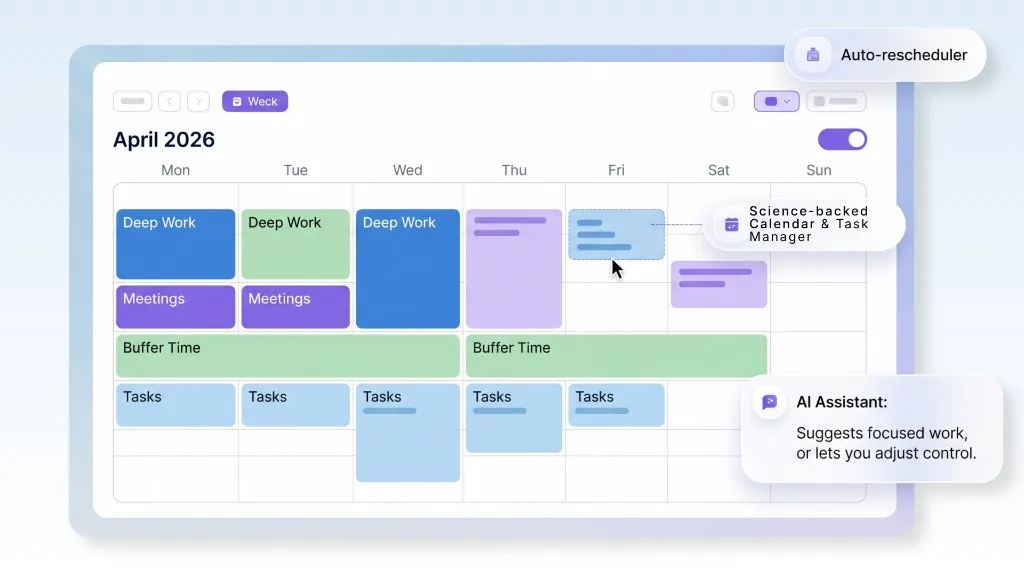
Booking events land directly in your Flowo schedule.
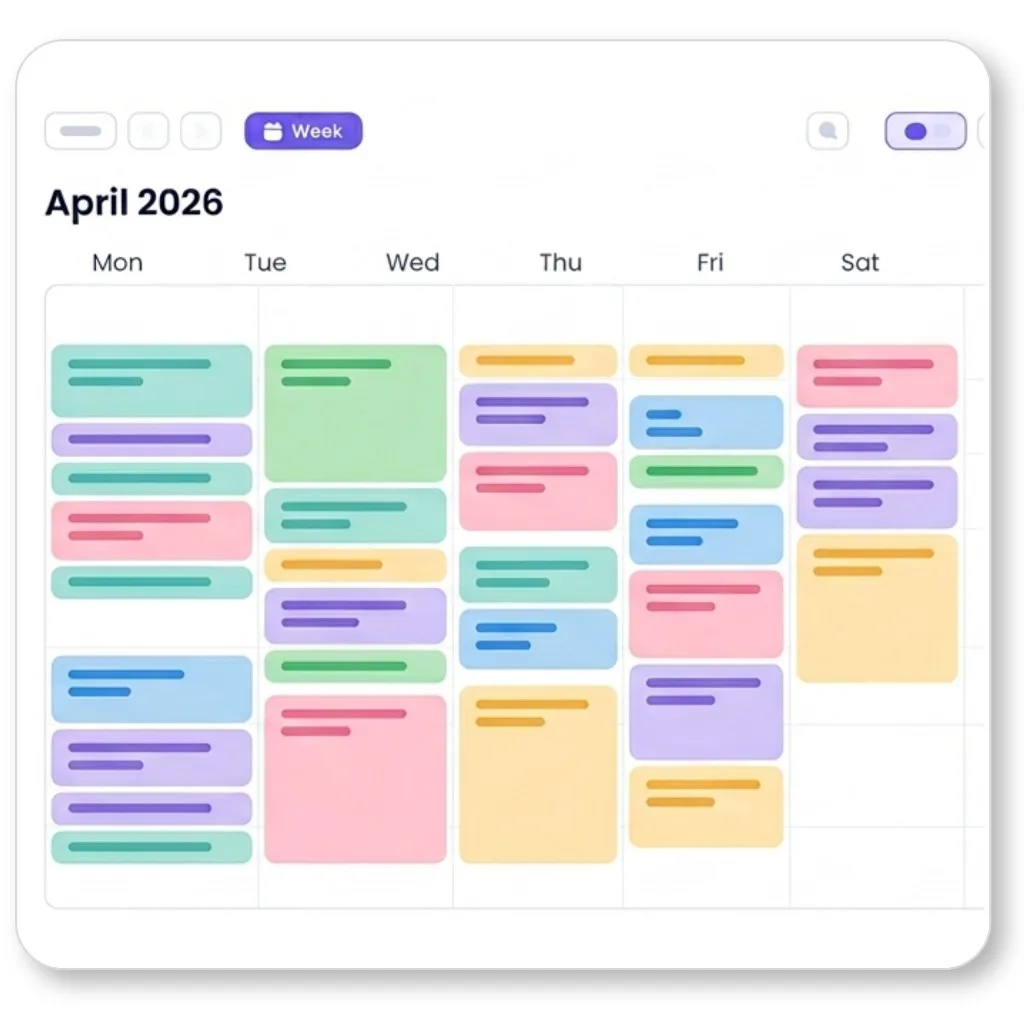
The AI automatically reshuffles pending tasks around new bookings.
Your booking URL
Create your personal link (for example getflowo.com/book/yourslug) and share it anywhere: email signature, website, or LinkedIn.
AI reschedule built in
As soon as a booking lands, Flowo updates your week by moving pending tasks around the new meeting automatically.
Preview the flow
Use Preview before sharing to check exactly what guests will see, including fields, message, and available slots.
Create a booking link
In the sidebar, click Booking
Open the Booking space from the main app navigation.
Click + New link
This opens the booking configuration form.
Configure your link
Title — displayed on the booking page (e.g. "30-min intro call")
Duration — the meeting length (15 min, 30 min, 1h…)
Link type — Public (unlimited bookings) or limited (set a max number of uses)
Calendar — which connected calendar to check availability and write events to
Meeting type — In person (add an address) or Online (auto-generates a Meet/Teams link)
Available timeslots — use your Flowo timeslots or define manual day/hour windows
Buffer between meetings — minimum gap before/after each booking (e.g. 10 min)
Max meetings per day — cap bookings per day
Availability — Standard (only truly free slots: no event, no task) or Relaxed
Message for guests — text shown on your booking page
Guest form fields — name, email, message by default; add custom fields
Click Save settings
Your booking page is generated instantly.
Share your booking link
Copy the URL shown at the top (for example getflowo.com/book/yourslug) and send it to contacts.
What your guest sees
A clean 3-step page:
- 1. Pick a date and time — only genuinely available slots are shown, in the guest timezone.
- 2. Fill details — name, email, and any custom fields you configured.
- 3. Confirmation — the guest receives a confirmation email and the event appears in your Flowo calendar.
Managing your links
- → Copy link — share it anywhere (email signature, website, LinkedIn).
- → Stats — see how many bookings each link has received.
- → Preview page — check exactly what guests see before sharing.
- → Pause — temporarily deactivate a link without deleting it.
- → Delete — permanently remove a link.
How it fits with AI scheduling
When a booking lands, Flowo treats it like any calendar event: the AI reschedule engine automatically repositions your pending tasks around the new meeting — no manual adjustment needed.
Mobile app experience
Flowo is a responsive web app with a layout tuned for phones:
- → Bottom navigation — Menu, Agenda, Events list, Projects, Notes, Settings.
- → + button (FAB) — Opens the same actions as + New on desktop.
- → Drawer — ☰ Menu slides in the full sidebar (projects, install, guide, support).
- → Swipe — On the agenda, swipe left/right to move between weeks or days (in day mode).
Manual Events
Beyond synced calendar events, you can create manual one-time events directly in Flowo. Events are fixed in time — the AI scheduler works around them, never over them.
Creating an Event
Click + Event in the top bar. Fill in: title, date, start time, end time, description (optional), and meeting link (optional). You can also click directly on an empty time slot in the grid to create an event at that time.
Recurring Events
Toggle Recurring when creating an event to set a frequency: daily, weekly, monthly. Recurring events show a ↺ icon on the calendar block. Edit one occurrence to change all future occurrences.
Meeting Links
If you paste a Zoom, Google Meet, Teams, or Webex link in the description, Flowo automatically detects it and shows a 📹 button in the event detail view. One click to join the call directly from Flowo.
Cancelling an Event
Open the event detail and click the Delete / Cancel button. For synced calendar events (Google Calendar, Outlook), cancelling removes it from your Flowo view only — the original event in Google/Outlook is not affected. To permanently cancel a synced event, cancel it from the original calendar source.
Google Calendar Sync
Connect your Google Calendar to see all events in Flowo. The AI scheduler automatically avoids scheduling tasks over your Google Calendar events.
Get your ICS link from Google
Go to Google Calendar Settings → click on a calendar in the left panel → Integrate calendar section → copy the Secret address in iCal format. This is a private URL — keep it confidential.
Connect in Flowo
Go to Settings → Calendar sync → + Connect calendar. Paste the ICS URL. Name the calendar (e.g., "Work Google", "Personal Google"). Click Import.
Events appear automatically
Google Calendar events appear with a 🔴 Google icon. They're read-only — you can't edit them from Flowo. Click Sync to manually refresh (auto-syncs hourly).
Outlook / Microsoft Calendar Sync
Get your Outlook ICS link
In Outlook.com: Settings (gear icon) → View all Outlook settings → Calendar → Shared calendars. Under "Publish a calendar", select your calendar, choose "All details" visibility, then click Publish. Copy the ICS link shown.
Connect in Flowo
Same as Google: Settings → Calendar sync → + Connect calendar. Paste URL, select "Outlook" as type, name it, click Import.
Any ICS Source
Flowo accepts any valid ICS URL — not just Google and Outlook. This includes:
- → Apple Calendar (iCloud shared calendar ICS links)
- → Notion Calendar ICS exports
- → School / university calendars (most publish ICS feeds)
- → Sports leagues, event calendars
- → Any tool that exports in ICS format (Asana, Jira, Linear often have calendar views with ICS export)
Settings → Calendar sync → + Connect calendar → paste any valid ICS URL.
Week View
The default and primary view. Shows 7 days with an hourly time grid. Task blocks are positioned based on their scheduled time slot.
- ←→ Use arrow buttons in the top bar to navigate between weeks (or swipe on mobile)
- → Click "Today" to jump to the current week
- → Use the Day / Week / Month control to cycle views
- → Next to the time labels, − / + changes how many hours fit on screen (vertical zoom)
- → Overlapping tasks show side by side in automatic columns
- → All-day events appear in the top strip above the time grid
- → Red line shows current time
Month View
Use the top bar control to switch to Month (it cycles Day → Week → Month). Each day cell shows up to a few task/event pills; +N others shows the rest.
Click any empty day to create a new task with that day pre-filled as the deadline. Click any task pill to open the detail panel.
Weather on the calendar
Flowo can show compact forecast hints on day, week, and month views (powered by Open-Meteo — no API key needed on your side).
Enable & set location
Go to Settings → General (language & theme). Find Weather on the calendar, turn it on, enter a city (e.g. Paris, Montreal), and save.
Show or hide on the grid
Use the weather control in the top bar to hide forecasts when you want a cleaner view.
Visible hours (vertical zoom)
In week and day views, the time column has − and + controls. They change how many hours are visible at once without changing your real schedule — like zooming the calendar vertically.
Fewer visible hours = taller rows (easier to read); more visible hours = more context on one screen. Your preference is saved and synced with your account.
All Settings
| Setting | What you can configure |
|---|---|
| Planning slots | Create, edit, or delete timeslots. Define days and hours for each planning window. |
| Blocked slots | Add recurring unavailable time ranges (lunch, gym, commute, etc.). |
| Projects | Create, rename, recolor, or delete projects. Reorder them in the sidebar. |
| Calendar sync | Connect Google or Microsoft (OAuth), or add ICS URLs. Refresh or remove sources. |
| General | Language, theme (light / classic / dark), weather on the calendar, notifications, fun & briefing options. |
| Desktop app | Download the native Windows app — step-by-step instructions and antivirus reassurance. |
| My account | Subscription, username/email/password, two-factor authentication (TOTP), billing portal (Stripe), delete account. |
| Data | Export all data as JSON backup. Reset all data (irreversible — export first). |
| AI Credits | View remaining monthly AI credits. Purchase extra credits if needed. |
Language Settings
Flowo supports 5 interface languages. Go to Settings → Language and click your preferred language flag. The interface switches immediately — no reload needed.
🇫🇷 Français 🇬🇧 English 🇪🇸 Español 🇮🇹 Italiano 🇩🇪 Deutsch
Note: task titles, project names, descriptions, and calendar event titles are not translated — only the UI labels (buttons, menus, settings) change.
Two-factor authentication (2FA)
Optional TOTP adds a second step at login (authenticator apps such as Google Authenticator, 1Password, Authy).
Turn it on
Go to Settings → Account. In the 2FA block, follow the setup: scan the QR code, enter the 6-digit code to confirm.
Every sign-in
After email and password, Flowo asks for your current authenticator code before opening the app.
Backup
Store any recovery / backup codes you are shown during setup in a safe place. Losing both your device and backups can lock you out.
Desktop App (Windows)
Install Flowo as a native desktop application on Windows — same account, same calendar, Google or Microsoft sign-in. Open Flowo from the Start menu without using a browser.
In Flowo, open Settings → Desktop app for the download button and step-by-step help. You can also use the direct link below.
Windows
Download the installer
Click Download for Windows or use Settings → Desktop app.
Run setup
Open flowo-windows-setup.exe, follow the wizard, then launch Flowo from the Start menu.
Sign in
Connect with Google or Microsoft — same account as on getflowo.com.
Data & Export
Flowo stores all your data securely in the cloud. Your tasks, projects, timeslots, blocked slots, and settings are synced across all your devices in real time.
Export Your Data
Go to Settings → Data → Export JSON. This downloads a JSON file with your tasks, projects, timeslots, blocked slots, notes, note folders, and related settings. Keep it as a backup or use it to migrate data.
Reset All Data
Go to Settings → Data → Reset all data. This permanently deletes all your tasks and settings. Export a backup first — this is irreversible.
Useful links
Official pages for terms, privacy, and cookies. These apply to Flowo (getflowo.com) and complement this guide.
Terms & Conditions
Terms of service, billing, acceptable use, and legal agreement when you use Flowo.
Privacy Policy
How we collect and use personal data, GDPR rights, Google & Microsoft integrations, and subprocessors.
Cookies & storage
What we store in the browser, consent preferences, and Cloudflare security cookies.
Referrals — invite friends
Flowo has a referral program (not the same as a random promo coupon): when someone you invite subscribes to Flowo Start or Flowo Max with a card on file and their subscription becomes active, both of you can receive a bonus month on eligible plans. There is a rolling anti-abuse cap on how many rewards can be granted per period.
Get your link (in the app)
Signed-in users: Settings → Referrals, or tap the gift icon in the left sidebar footer. Copy the link and share it by message, email, or social.
How your friend joins
If they open your link before creating an account, the referral code is stored automatically. Otherwise they can enter your code on the sign-up form (optional field).
When rewards apply
Rewards are tied to paid Start/Max activation (card on file, subscription active). Team billing follows different rules — the in-app Referrals page reflects what applies to your account.
Quick wording in other languages
Français
Parrainage : partage ton lien (Paramètres → Parrainage ou icône cadeau). Récompense +1 mois pour toi et ton filleul sur Start/Max quand l’abonnement payant est actif — plafond anti-abus.
Español
Referidos: comparte tu enlace (Ajustes → Referidos). Bonus de ~1 mes para ambos en Start/Max con tarjeta y abono activo — límite anti-abuso.
Italiano
Referral: condividi il link (Impostazioni → Referral). Circa +1 mese per entrambi su Start/Max con carta e abbonamento attivo — limite anti-abuso.
Deutsch
Empfehlungen: Link teilen (Einstellungen → Empfehlungen). Ca. +1 Monat für beide bei Start/Max mit Karte und aktivem Abo — Anti-Missbrauch-Limit.
FAQ
Ready to try Flowo?
7-day free trial. Set up in under 5 minutes. Your schedule, finally intelligent.
Start free trialTry 7 days for free — cancel anytime · Questions? hello@getflowo.com